Introducing AdapTable DevTools
Manage your AdapTable instance from Chrome DevTools — read and migrate State, restore snapshots, view logs, design themes & debug your data from scripts and AI agents
AdapTable DevTools provides what developers and support teams have long asked for: a first-class way to see inside a live AdapTable instance — not just Grid cells, but also State, Theme and logs.
DevTools is a first-class Chrome extension that sits beside AG Grid and lets you inspect, restore and restyle a running instance — so teams spend their time improving the Grid, not reconstructing it.
Welcome to AdapTable DevTools — a Chrome Developer Tools extension for every page that runs AdapTable; a developer tool, built for people who live in the console.
It provides the capability that IT and support managers notice: faster tickets, access to State, and theme work that no longer needs a designer-to-developer workflow.
There is also an in-page API so the same instance data is available without the tool.
Why AdapTable DevTools is a DataGrid Game Changer
- For developers, it is a live control room for the Grid:
- See every AdapTable instance on the page, identified by
adaptableId - Inspect current State, compare snapshots, tag them and restore any one
- Read instance logs without drowning in the browser console
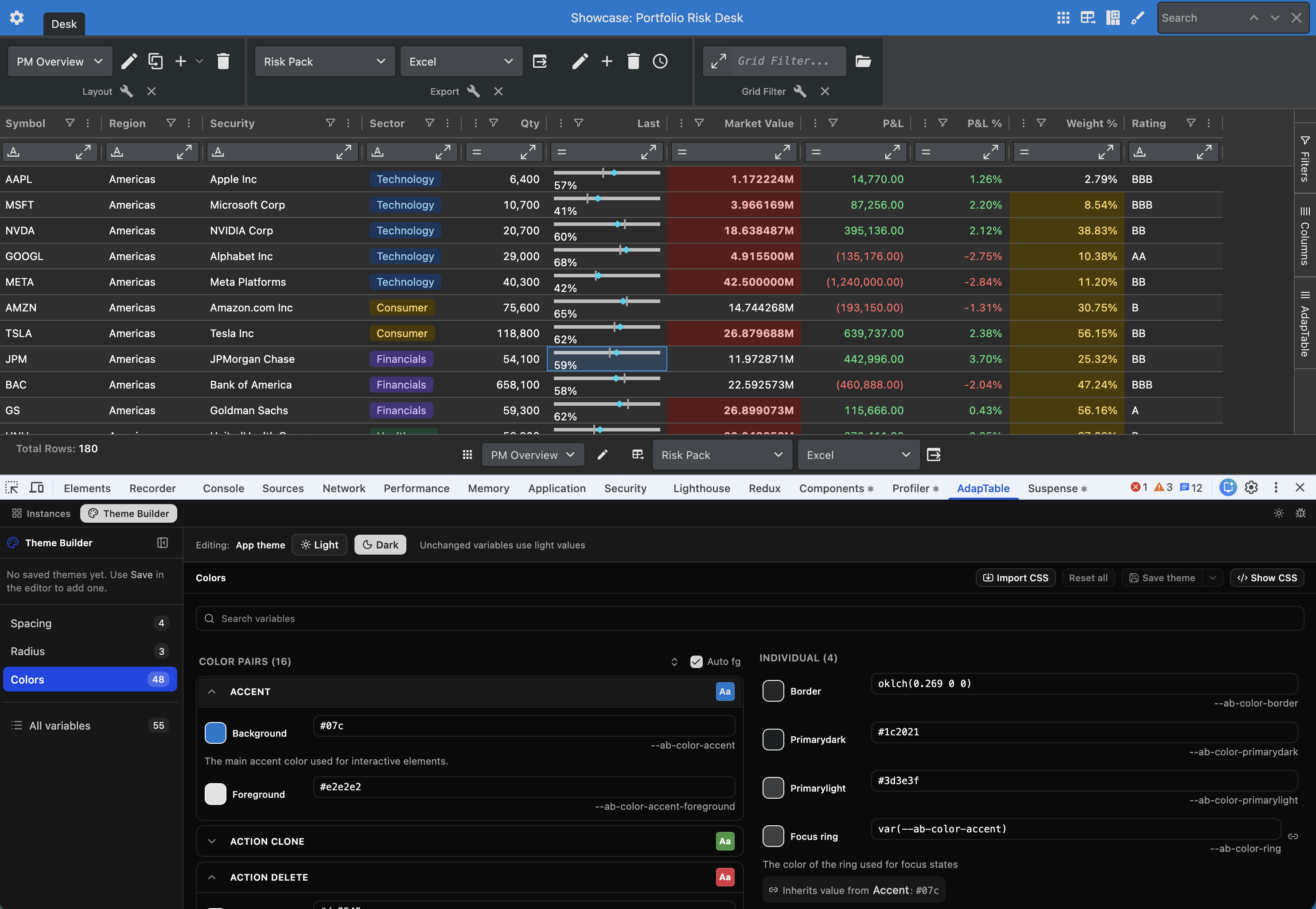
- Design a theme against the running Grid and export the CSS
- Call the same instance data from the console, a test, or an AI coding agent
- See every AdapTable instance on the page, identified by
- For support and IT, it is leverage you do not have to build:
- Reproduce what a user saw by restoring their State
- Send live State through the State Migration Tool and put the result back on the Grid
- Spot version mismatches between AdapTable and AG Grid
- Hand a themed Grid back as CSS, not a screenshot and a hope
- Cut the hours that usually sit between “it looks wrong” and “we can see why”
Most teams already open Chrome DevTools when something in the Grid is off.
Until now, that meant reconstructing AdapTable State by hand.
Developers needed to guess which Layout or Filter was active, or iterating on AdapTable CSS variables in a stylesheet they could not see applied live.
AdapTable DevTools puts that work in the same panel you already use.
Important
- AdapTable DevTools is a Chrome extension — a new AdapTable tab in Developer Tools
- It is for developers and support, not end users: it sits outside the runtime Settings Panel
Note
The same instance data is also on the page as window.__ADAPTABLE_DEVTOOLS__
Developer Guide
Install DevTools in a Minute
It could not be simpler to get started:
Add AdapTable DevTools from the Chrome Web Store
Open any application that is running AdapTable
Open Chrome DevTools and choose the AdapTable tab
That is it. No extra package, no extra licence key, no code change.
Hint
- If the page hosts more than one Grid — or Grids inside iframes — each one is listed by
adaptableId - Choose the AdapTable instance you want from dropdown
Manage AdapTable from DevTools
AdapTable DevTools helps you manage a live AdapTable instance from Chrome.
You can see what the Grid is doing, change how it looks, and put it back the way it was.
The header shows the selected adaptableId.
Note
- When the page has one Grid, that id is shown as text
- When it has more than one, choose the one you want from the Select Instance dropdown
Open Grid Settings for… in the header opens the runtime Settings Panel at a chosen module.
There are four sections in AdapTable DevTools:
| Section | What it does |
|---|---|
| Grid Info | Versions, the current Layout, and logs for the selected Grid |
| State | Snapshots of Adaptable State: manage, compare and migrate |
| Theme Builder | Edit theme CSS variables on a running Grid and export the CSS |
| Debug Info | Inspect the DevTools store and theme variables discovered on the page |
Grid Info
Four tabs describe the current Grid.
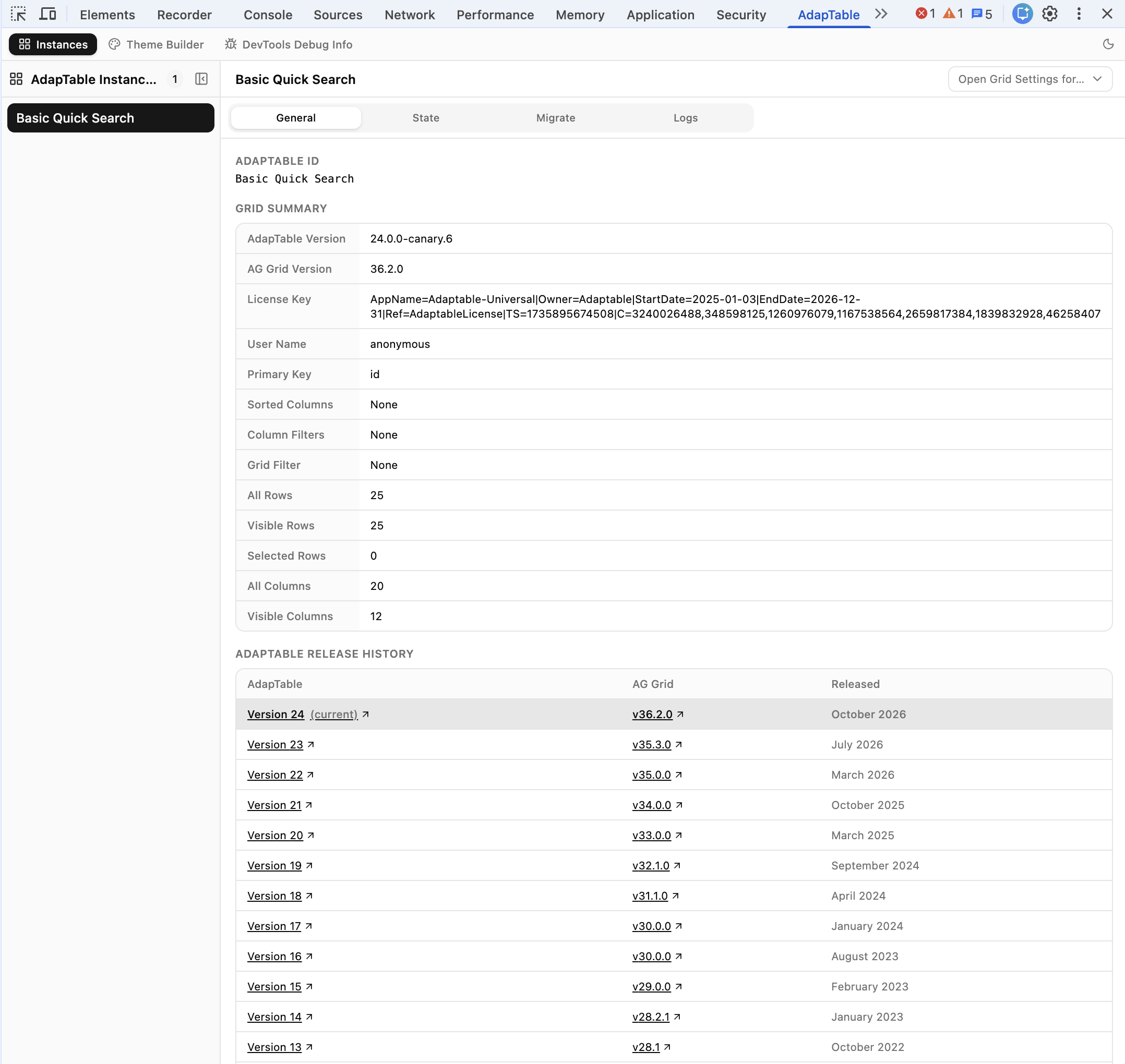
General
The General tab tells you which Grid you are looking at.
It shows Adaptable ID, AdapTable and AG Grid versions, license key, user name and primary key.
You can also see the AdapTable version history, and which AG Grid version that release supports.
Note
- DevTools warns if the AG Grid version is older than the one that AdapTable release was built for
- It will also tell you if a newer AdapTable is on npm
Column
The Column tab displays summary information about the column selected in the column chooser.
It also provides visual details of all objects scoped to that column (e,g. Format Column, Alert, Styled Column, Calculated Column etc.)
Layout
The Layout tab shows the Layout that is on the Grid now, and whether it is Table or Pivot.
It also provides information about column sorts, Column Filters, Grid Filter, and Row and Column counts.
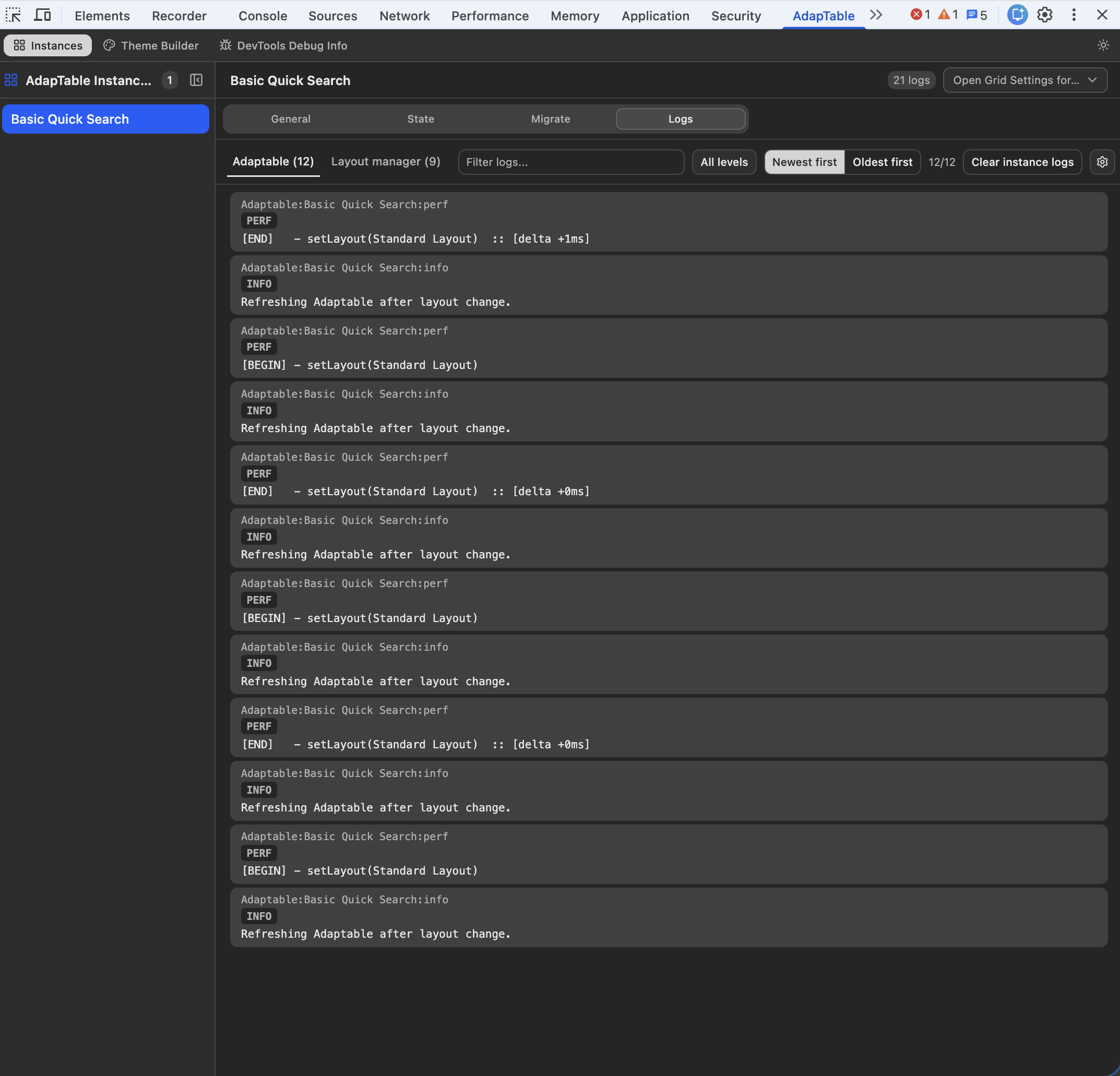
Logs
The Logs tab collects AdapTable and Layout Manager messages for that instance only.
You can filter them, sort them, show timestamps, or clear the list.
State
The State tab is the resource that our advanced support teams have long requested.
It is a powerful tool that allows them to manage their user's Adaptable State.
Manage
The Manage section is where most State-related support work happens.
DevTools records snapshots of Adaptable State as the Grid changes, allowing you to:
- tag a snapshot
- upload or download its JSON
- restore it onto the live instance
- clear the history (or clear everything except the tagged snapshots)
Hint
- This is particularly useful when a user reports that a Layout or style “disappeared”
- Simply restore the snapshot, and you are now looking at what they saw
Compare
The Compare section allows support teams to select two snapshots and see the diffs.
Migrate
The Migrate tab sends the Grid's persistent State to the State Migration Tool.
Choose a target version, review the result, and restore it onto the live instance.
Theme Builder
The Theme Builder section contains the most common user-requested functionality.
Changing AdapTable CSS theme variables in a stylesheet and refreshing the app is slow.
Changing them on the selected Grid is how themes actually get finished.
The editor groups the variables into Colors, Radius, Spacing and Typography for ease of use.
It also allows you to preview the theme in light or dark variants.
Note
- Each AdapTable instance keeps its own edits
- Switching to another Grid leaves that Grid unchanged
You can save the variables you are editing as a named theme.
Hint
- DevTools keeps that theme in the extension, in this browser, so you can apply it later to any Grid you open
- Show CSS copies the values into your stylesheet. You can also import CSS you already have
Hint
- The Theme Builder is the fastest way we know to produce a branded AdapTable theme
- The guide to customising themes describes the CSS, DevTools lets you discover the values
DevTools Debug Info
DevTools Debug Info provides details about what DevTools itself is holding.
It displays two pieces of information:
- the DevTools store (serialisable UI state)
- the theme CSS variables discovered on the inspected page, with current values
Hint
Use this when you need to see why a theme or panel is not behaving as expected
The In-Page API
As soon as AdapTable loads it defines window.__ADAPTABLE_DEVTOOLS__.
AdapTable DevTools reads this instance data.
Hint
The API is available without the extension, e.g. from console, Playwright, or AI agent that can evaluate in-page JS
You can list every mounted Grid, read Grid Info and columns, get State or persistent State, read logs, restore a snapshot, open the Settings Panel, and turn logging or profiling on.
Caution
Theme Builder, snapshot history and Migrate are extension-only
Every method returns plain JSON unless noted, so the result survives being copied out of the page.
window.__ADAPTABLE_DEVTOOLS__.listInstances();
window.__ADAPTABLE_DEVTOOLS__.getGridInfo('Trades');
window.__ADAPTABLE_DEVTOOLS__.getState('Trades', 'Layout');
window.__ADAPTABLE_DEVTOOLS__.getLogs('Trades', {level: ['error', 'warn']});
Find Out More
See the DevTools in-page API for the full method reference
The adaptable-debug Agent Skill tells agents to read a running Grid through this API, then validate what they extracted with the adaptable CLI's check state.
Hint
To add the skill: npx skills add https://www.adaptabletools.com
Help us Get Better
Very few Grid products give you a first-class DevTools extension.
AdapTable DevTools is not a logger bolted onto console.log.
It is a dedicated panel — and an in-page API — that understands AdapTable instances, State, logs and themes: the same objects your application already owns.
AdapTable DevTools is exceptional — but we want it to get better still.
Feedback
- For AdapTable DevTools to realise its full potential we need to hear from you
- Tell us what objects you restore, what you migrate, what you theme, and how you use the console
- And contact us at support@adaptabletools.com with all your ideas and suggestions
- That list is how we decide what features to add and what ships next