Editing with Row Forms
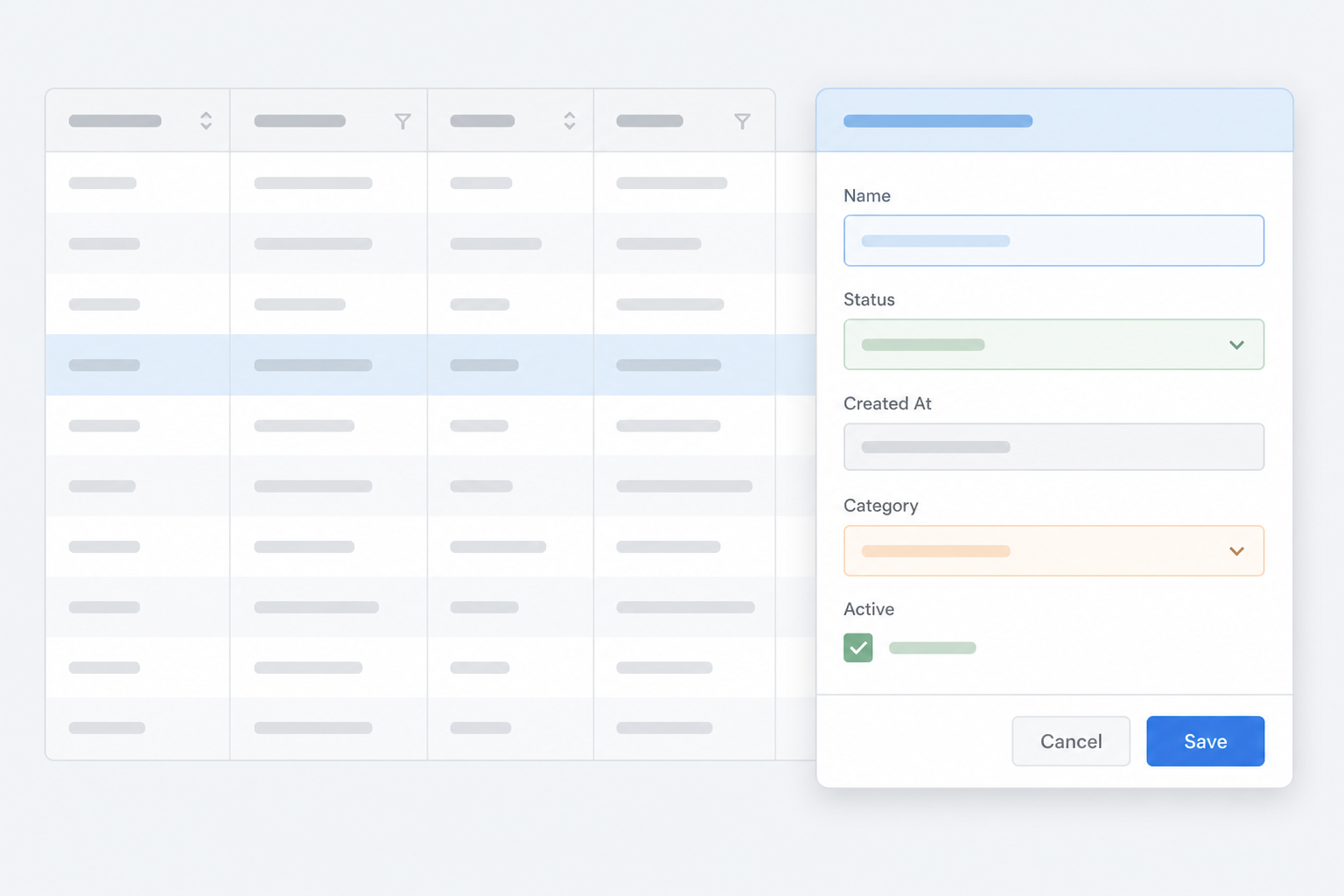
AdapTable Row Forms turn dense grids into clear, guided forms — so users can create, edit, clone and delete rows without fighting the spreadsheet
AdapTable provides multiple, out-of-the-box, features that take AG Grid to the next level for power users — an excellent example of this is Row Forms
Our users tell us that while Data Grids are brilliant for analysis, create, edit and clone still feels like spreadsheet chores, and do not integrate neatly into their other workflows.
This is why we developed Row Forms - to provide teams with a guided, record-oriented workflow, without giving up the unrivalled power of AG Grid underneath.
Data Grids are outstanding for scanning, comparing and bulk-editing data.
Data Grids are generally less friendly when someone needs to add a new record, or carefully amend several fields at once, or duplicate an existing row without mistyping a key.
AdapTable's Row Forms are designed precisely to solve that gap.
Important
- Row Forms are specialised Adaptable Forms — with full validation, custom field types and buttons
- Users can open Forms using Action Column buttons, and developers via Row Form API
Row Forms open up a popup Form, with one labelled control per column.
The result is that create / edit / clone / delete feel like a proper application workflow, while the grid remains the operational surface underneath.
Hint
You can keep fast inline cell editing, or switch to form-only editing for stricter data entry
| Form | What the user gets |
|---|---|
| Create | Empty Form for a brand-new row |
| Edit | Form pre-filled with the current row |
| Clone | Form pre-filled from an existing row (then saved as a new row) |
| Delete | No visible Form — fires submission so your app can confirm / remove safely |
In the Demo
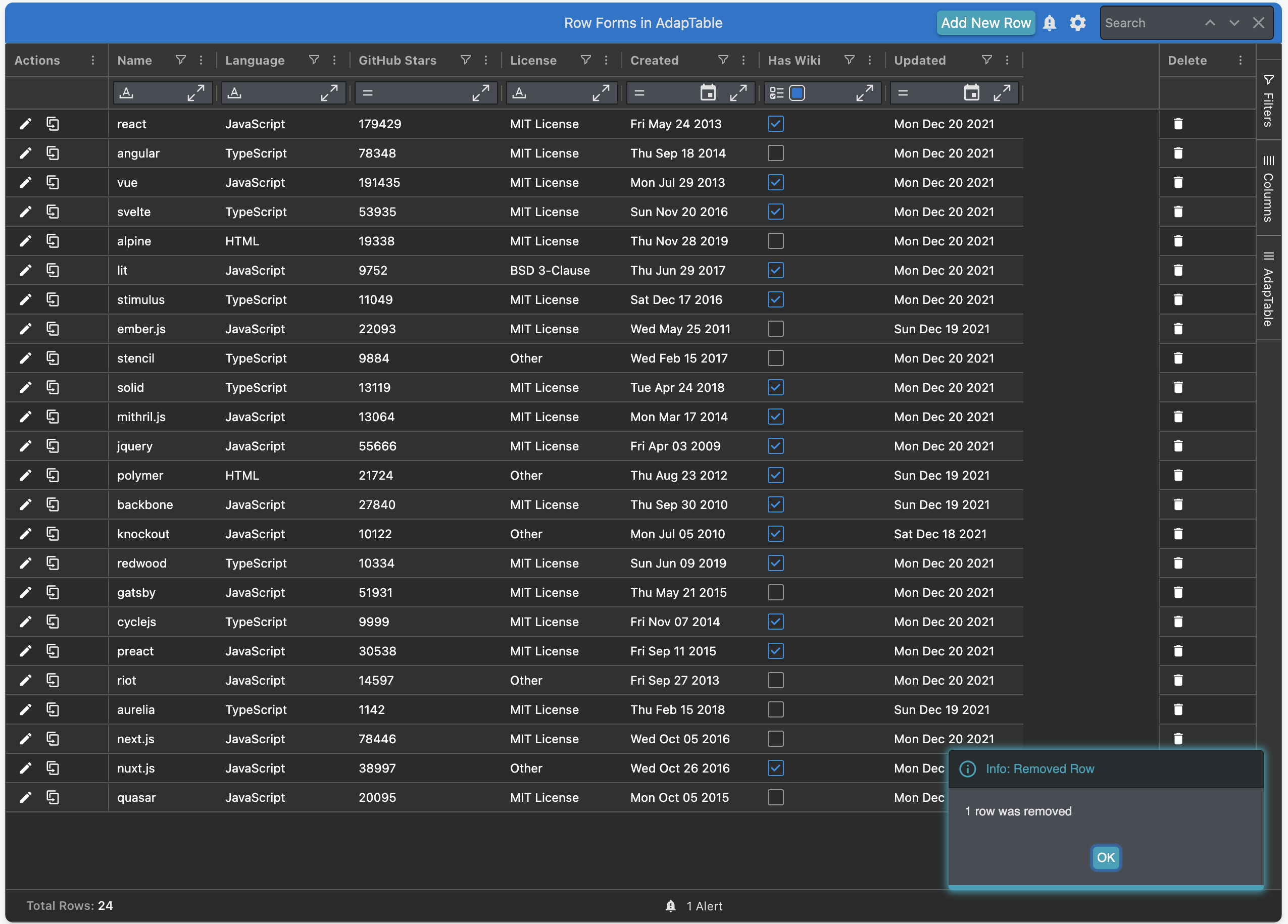
- The demo contains all 4 types of Row Forms:
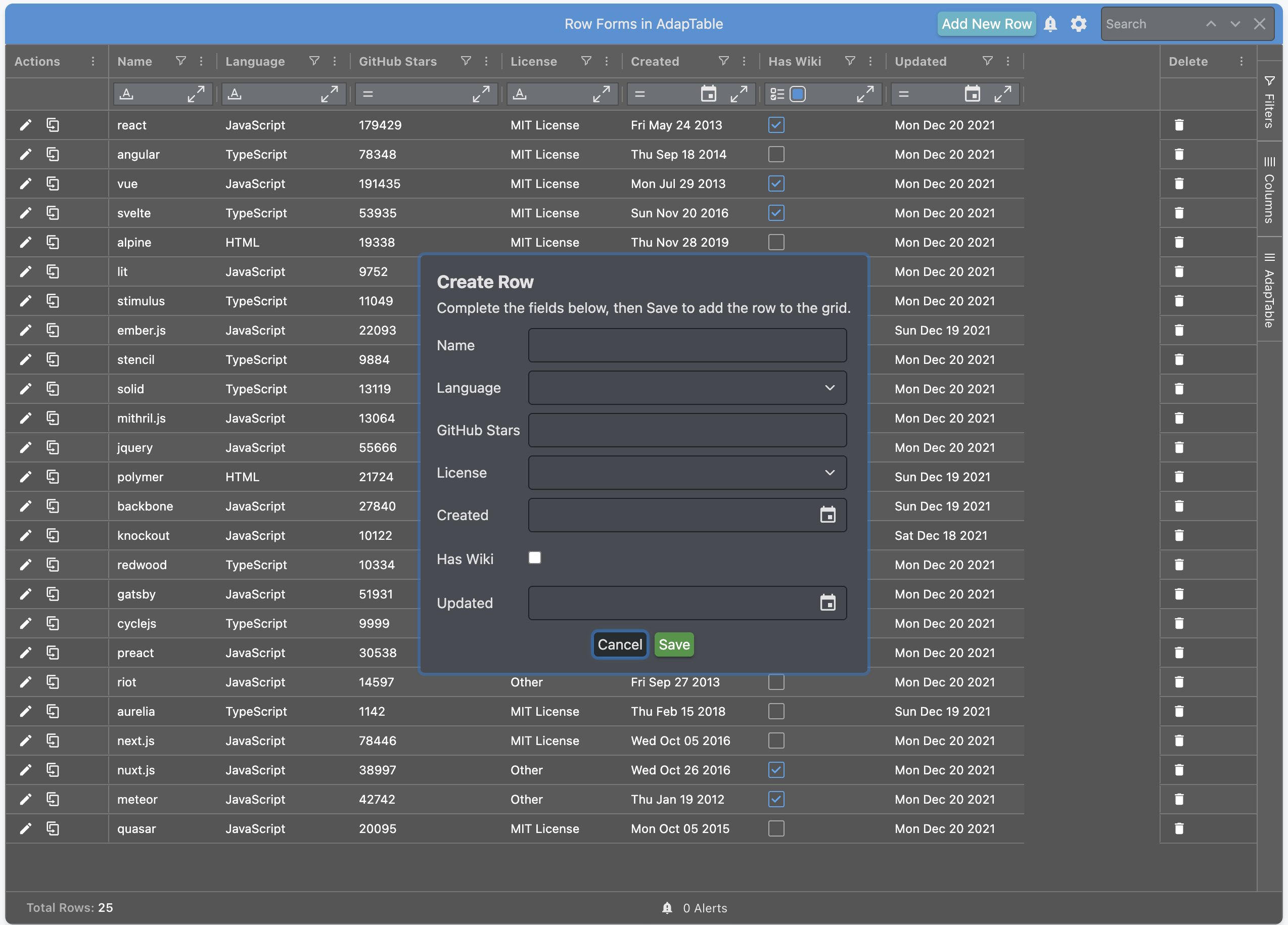
- Add New Row dashboard button → Create Form
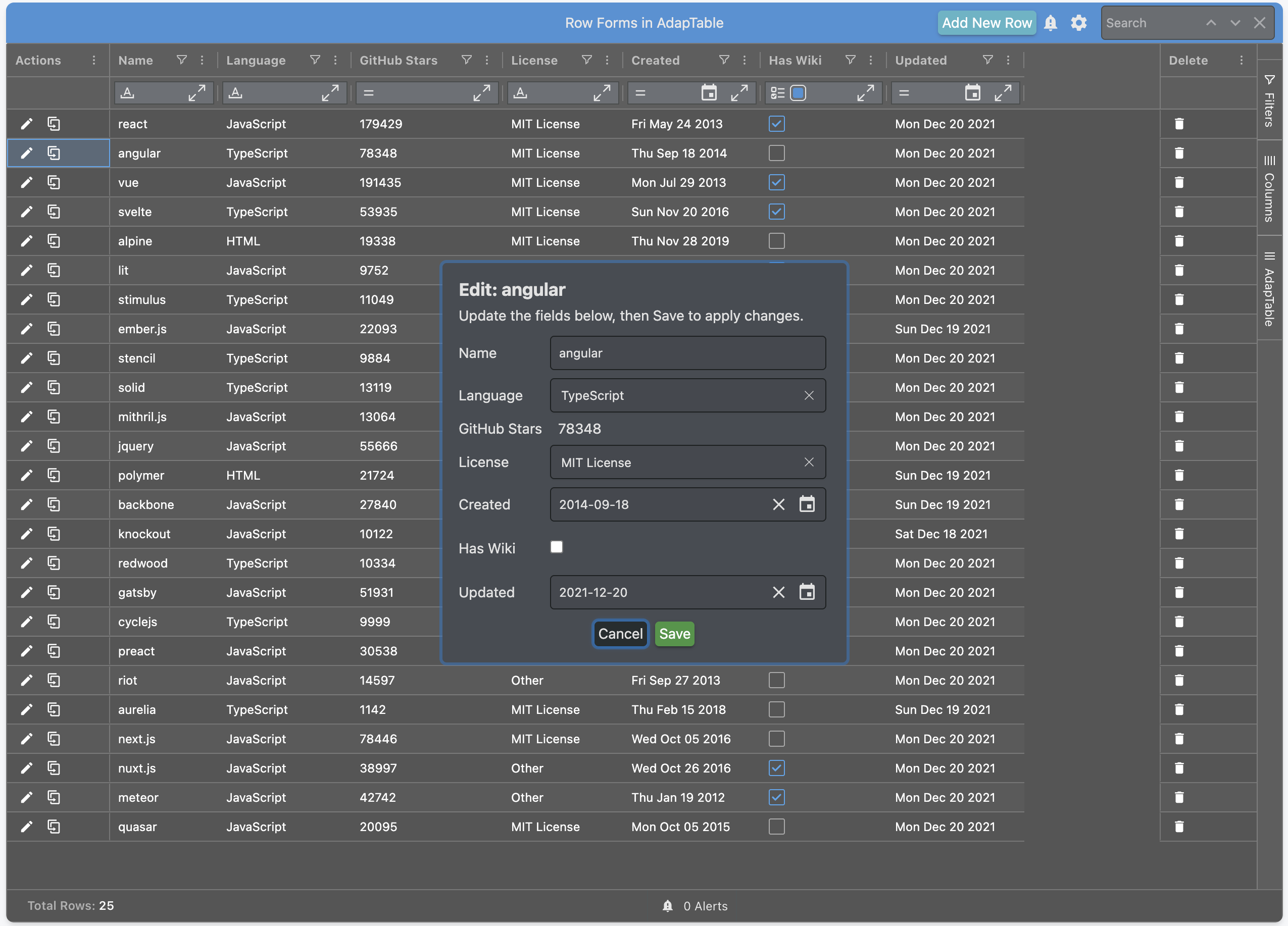
- Edit Action Column button (pinned left)
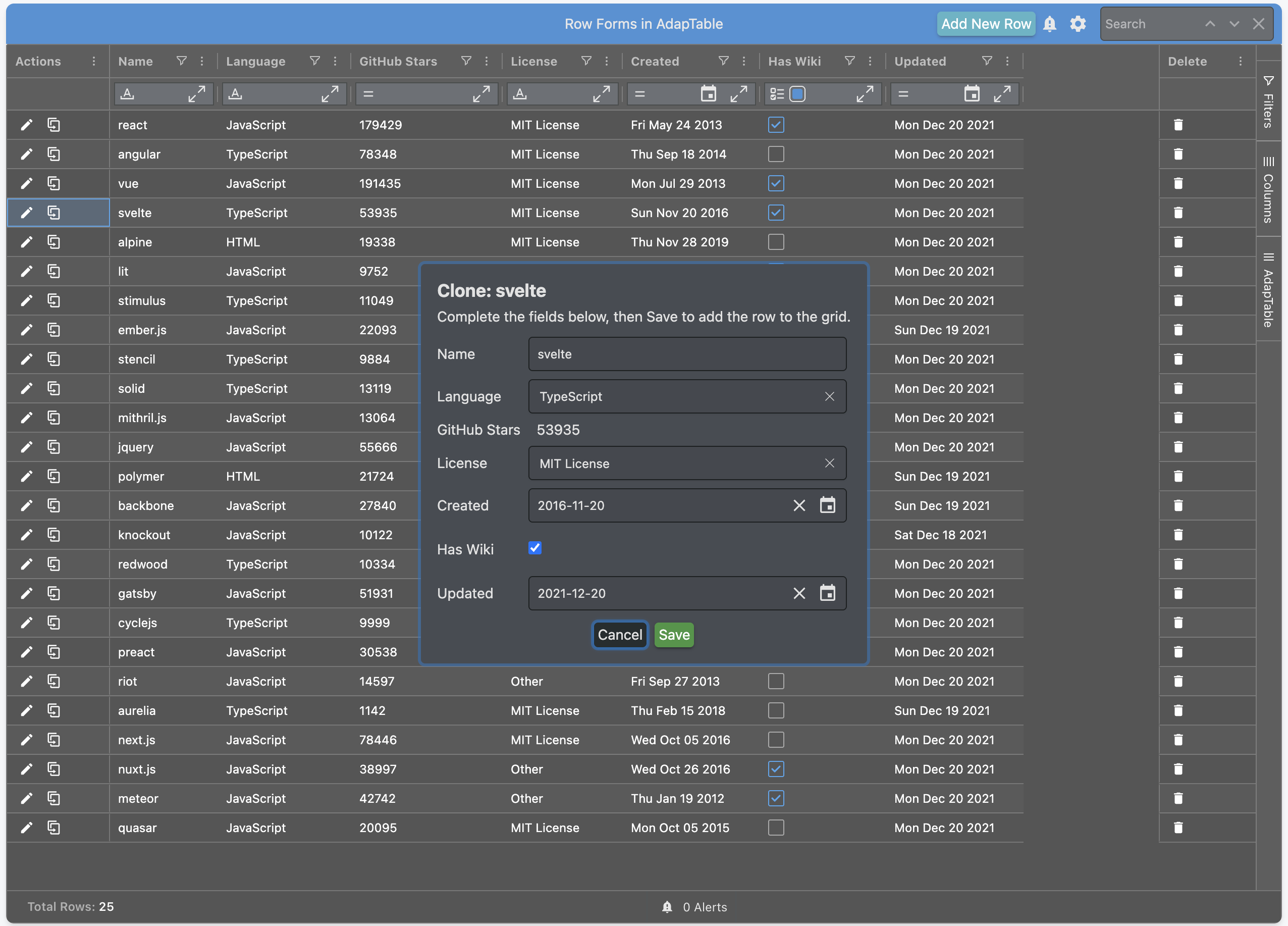
- Clone Action Column button (also pinned left)
- Delete Action Column button (pinned right)
- In addition a number of other features have been enabled:
- Inline cell editing is disabled — changes go through the Form
- Primary keys are generated automatically for Create / Clone
- Language and License use select editors (also shown in the Form)
- GitHub Stars is read-only (shown in the Form without an input)
- AdapTable auto-handles submission — no custom server wiring required for this demo
- Click Add New Row, fill a few fields, and Save — watch the new row appear at the top
- Click Edit on a row, change
LanguageorLicense, Save — the row flashes on change - Click Clone, tweak the
Name, Save — a second row is created with a new Id - Click Delete on any row — an Alert confirms it’s been removed
- Try double-clicking a cell to edit: inline editing is off, so the Form is the sole edit path
How Row Forms Help You
For product and ops teams, Row Forms are less about “another popup” and more about control:
- Fewer mistakes — users see every field with a clear label, not a horizontal scroll of cells
- Clearer policy — you can require the Form for edits (no casual cell tinkering)
- Familiar UX — Create / Edit / Clone match how people already think about records
- Safer delete — Delete still goes through AdapTable’s Form submission path, so you can hook validation, audit or a backend call
For developers, Row Forms sit on the same building blocks they already use in AdapTable, i.e. Forms, Buttons, Action Columns, Events etc.
Note
This ensures that the Row Forms scale from “works out of the box” to “fully custom workflow”
The 4 Row Form Types
There are 4 Row Forms available in AdapTable:
Create
Opens an empty Form based on your column / field structure.
This is often used for “New Order”, “Add Counterparty”, “Register Instrument” style flows
Hint
Use setPrimaryKeyValue in Row Form Options when users should not invent Ids themselves
Edit
Opens a dedicated, vertical, Form for the selected row.
Hint
Pair it with disableInlineEditing: true when the business rule is: edits only through the Form
Clone
Starts from an existing row and saves a new one.
Hint
This is perfect for “same as last week’s deal, but change date” or “duplicate trade but tweak two fields”
Delete
Unlike the other Row Form types, Delete does not render a Form UI.
However, Delete still fires the Row Form Submitted Event to inform you of the action.
Hint
This is what you want for confirmations, soft-delete, or server round-trips
Opening Row Forms
There are two common patterns to open a Row Form:
| Pattern | Best for |
|---|---|
Action Column Command (edit / clone / delete / create) | Per-row actions in the grid |
Row Form API (displayCreateRowForm, displayEditRowForm, …) | Toolbar / dashboard buttons, menus, custom workflows |
In the Demo
- Add New Row opens the Create Form via the Row Form API:
dashboardOptions: {
  customDashboardButtons: [
    {
      label: 'Add New Row',
      onClick: (_button, context) => {
        context.adaptableApi.rowFormApi.displayCreateRowForm();
      },
    },
  ],
},- The Action Column uses the built-in
edit,clone&deletecommands — no bespoke modal code:
actionColumnOptions: {
  actionColumns: [
    {
      columnId: 'actions',
      friendlyName: 'Actions',
      controls: [
        { type: 'command', command: 'edit' },
        { type: 'command', command: 'clone' },
      ],
    },
    {
      columnId: 'delete',
      friendlyName: 'Delete',
      controls: [{ type: 'command', command: 'delete' }],
    },
  ],
},
What Appears in the Form
Row Forms are vertical: label + control for each included column.
Note
Read-only columns show their value without an input
The Controls displayed in the Row Form follow the column’s data type:
| Column Data Type | Form control |
|---|---|
text | Text input |
number | Numeric editor |
date | Date picker |
boolean | Checkbox |
Hint
- Columns configured with a Select Cell Editor show that select in the Form too
- Use
includeColumnInRowFormto hide technical columns (Ids, Action Columns, etc.)
Other Possibilities
Form-only editing
Set disableInlineEditing: true when accidental cell edits are a risk (e.g. for compliance, or you have master data, or provide complex pricing).
In this scenario, AG Grid stays for analysis; the Row Form is the gate for changes.
Field-level configuration
Because a Row Form is an Adaptable Form, rowFormField can include full configuration options.
These include: required fields, patterns, help text, textareas, radios, sliders, hidden/disabled rules, and even custom widgets — per column and per Form type (Create vs Edit vs Clone).
Find Out More
See Configuring Row Forms and the Adaptable Form tutorial for the full field model.
Titles, descriptions and buttons
Customise the rowFormTitle, rowFormDescription and formButtons properties, when you need branded wording (e.g. “Save Order”) or additional actions alongside Cancel / Save.
Auto-handle vs your backend
By default AdapTable applies Create / Edit / Clone / Delete operations to AG Grid for you — ideal for prototypes and many internal tools.
For production APIs, set autoHandle: false and subscribe to the Row Form Submitted Event.
Hint
This allows you to validate, call the server, and only update AG Grid when the round-trip succeeds
rowFormOptions: {
  autoHandle: false,
},

// in AdaptableReady:
adaptableApi.eventApi.on('RowFormSubmitted', event => {
  // event.type: 'rowCreated' | 'rowEdited' | 'rowDeleted'
  // call your API, then update grid data when ready
});
Note
- Clone submissions use the create path with pre-filled data
- Your handler still decides how the new primary key and persisted record are produced
Which Approach Should I Use?
| Goal | Approach |
|---|---|
| Users must edit via a guided Form | Edit Form + disableInlineEditing |
| Users often duplicate similar rows | Clone Form |
| Toolbar “New …” action | Create Form via Row Form API |
| Persist through your API / reject bad data | Set autoHandle:false and use Row Form Event |
| Hide Ids/action columns from Form | Leverage includeColumnInRowForm |
| Required email, textarea notes, etc. | rowFormField overrides |
Hint
- Many teams start with auto-handle + Action Columns
- They then introduce event handling when the backend contract is ready
Note
Row Forms compose cleanly with ROW_ADDED/ROW_REMOVED Alerts & Flashing Cells for visual confirmation
FAQ
Do Row Forms replace inline editing?
No. Inline editing remains available unless you set disableInlineEditing: true. Many apps keep both: quick cell tweaks in the grid, Form for fuller create / edit flows
Can I validate data before it enters the grid?
Yes. Use field validation on the Form so Save stays disabled until the Form is valid.
For server-side checks, set autoHandle: false and handle Row Form Submitted Event yourself
How do primary keys work on Create / Clone?
Implement setPrimaryKeyValue in Row Form Options so AdapTable can assign a unique Id when the user should not type one
Can I change which columns appear on the Form?
Yes — includeColumnInRowForm decides inclusion per column; Read-only columns still appear as display-only fields.
Is Delete really a “Form” if nothing is shown? Delete uses the same submission pipeline (and Action Column command) without rendering fields — so your event listeners and policies stay consistent with Create / Edit / Clone