Action Columns in AdapTable
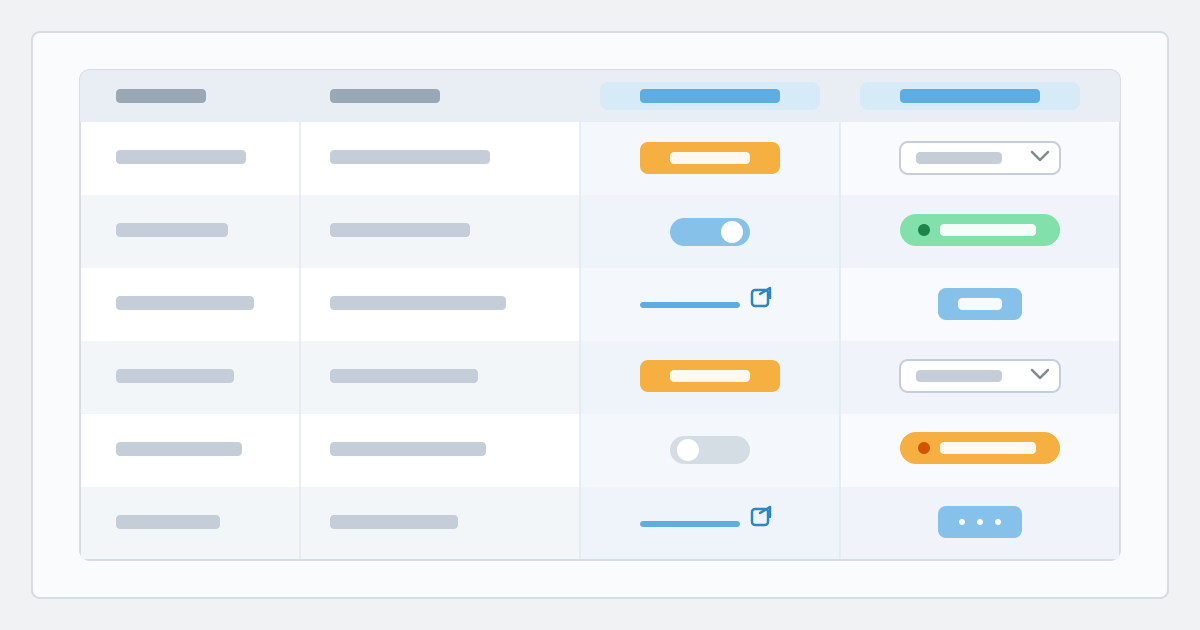
Action Columns turn each row into a mini toolbar — buttons, toggles, links, selects, commands, menus, forms and your custom components — without needing to write a cell renderer
Our users tell us they want to act on a row — flip a flag, open a record, run a workflow — without leaving AG Grid, but that custom cell renderers are complex and costly to write and even harder to maintain.
This is why we developed Action Columns: eight Control types, configured in a few lines, that give teams the flexibility and power of a per-row toolbar — without the usual custom-renderer overhead.
AdapTable's core mission is simple: help developers and end users design complex, powerful AG Grid functionality with a minimum of effort and custom code.
Action Columns are a textbook example — a design-time column that hosts interactive Controls on every row, so users can act on the data they are looking at.
How Action Columns Help You
- For product and ops teams, Action Columns serve to keep the workflow on the row:
- No hunting in toolbars — the action sits next to the data it applies to
- Familiar controls — buttons, switches, links and dropdowns behave as people expect
- Safer destructive actions — confirm prompts and built-in Delete commands with one click
- Room to grow — start with a button; add menu, forms or custom content as workflow needs it
- For developers, the appeal is how little AG Grid machinery you have to own or manage:
- No need to write a cell renderer or a framework wrapper for the common cases
- Each Control receives
ActionColumnContext— the row, the node, and the Adaptable API - Labels, icons, styles & visibility can be functions, so the same Column can look different per row
Data Grids are outstanding at scanning, comparing and editing cells.
They are generally less friendly when someone needs to do something with a whole row: e.g. edit the row, pick a status, jump to a URL, or run a small custom widget.
That is exactly what Action Columns are for.
Important
- Action Columns are special columns created by AdapTable (like Calculated or Free Text Columns)
- They don't live in your Data Source; AdapTable creates them for you at start-up, when the Grid loads
AdapTable provides 8 Action Column Control types to cover a wide range of use cases:
Hint
You can mix and match these in as many Columns as you wish
| Control | type | What the user gets |
|---|---|---|
| Button | button | A clickable button with your onClick |
| Toggle | toggle | A switch, checkbox or toggle-button bound to a boolean |
| Link | link | A hyperlink built from the row |
| Select | select | A dropdown that writes a chosen value |
| Command | command | Built-in Edit / Clone / Delete / Create Row Forms |
| Menu | menu | A dropdown (or split button) of other Controls |
| Form | form | An Adaptable Form in a popover |
| Custom | custom | Your own React / Angular / Vue / HTML content |
Note
- You define the Column once in Action Column Options
- AdapTable renders the Controls, wires the context, and maintains the Layout like any other Column
In the Demo
- The demo is a single AG Grid instance with one Action Column per Control type:
- Stars —
buttonincrementsGitHub Starsby 1 (JavaScript / TypeScript) or 2 (HTML) - Wiki —
toggle(switch) bound toHas Wiki - Repo —
linkopens the GitHub page - License —
selectwrites a new license - Edit —
commandopens the Edit Row Form (disabled when Wiki is off), pinned right so stays visible - More —
menuwith add-star, clone and delete - Notes —
formpopover to edit the description (hidden on HTML rows) - Heat —
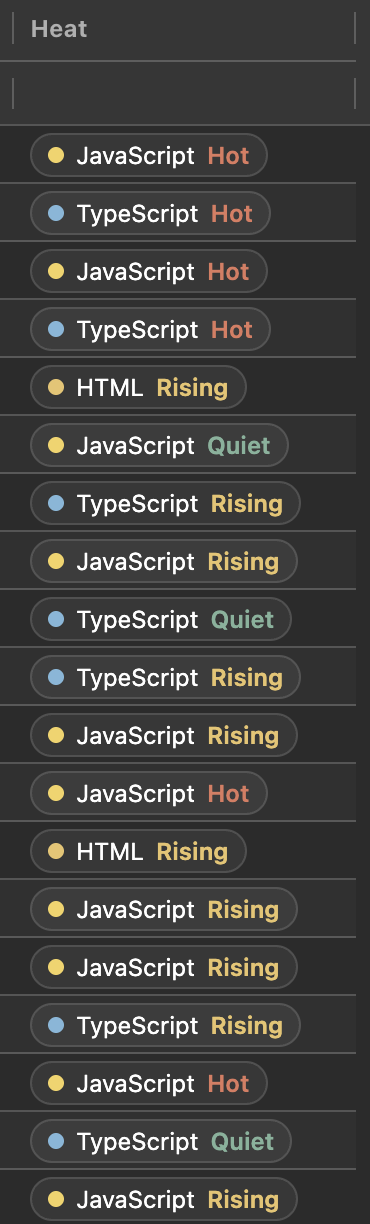
customReact component; click to filter the Grid to that language
- Stars —
- Note: Stars flash when they change, so the button (and the menu item) are easy to see
- Click +1 on a JavaScript or TypeScript row, (+2 on an HTML row) and see
GitHub Starsflash - Flip the Wiki switch — Edit enables or disables with it
- Open a GitHub link, then change a License from the dropdown
- Scroll the Grid sideways — Edit stays pinned on the right; click it on a row that has a Wiki, or Notes on a non-HTML row
- Use More to clone or delete a row (delete asks for confirmation)
- Click a Heat chip to filter the Grid to that language; click it again to clear
The 8 Control Types
Every Action Column Control is an object in the Column’s controls array (keyed by type).
Button
The button is the most commonly used Action Column Control.
Note
- It is the same Adaptable Button used in the Dashboard, Tool Panel and Forms
- There is an
onClickfunction that receives the row context to allow you to wire up actions
In the Demo
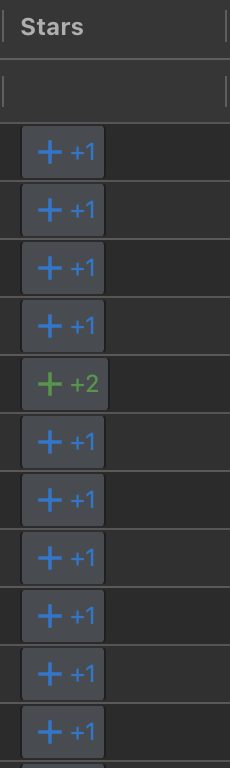
Stars adds 1 star for JavaScript / TypeScript and 2 for HTML:
{
  type: 'button',
  label: context => (context.data?.language === 'HTML' ? '+2' : '+1'),
  icon: {name: 'plus'},
  style: context => ({
    variant: 'outlined',
    tone: context.data?.language === 'HTML' ? 'success' : 'accent',
  }),
  onClick: context => {
    const increment = context.data?.language === 'HTML' ? 2 : 1;
    context.adaptableApi.gridApi.setCellValue({
      columnId: 'github_stars',
      newValue: (context.data?.github_stars ?? 0) + increment,
      primaryKeyValue: context.primaryKeyValue,
      rowNode: context.rowNode,
    });
  },
}
Hint
- If
onClickreturns aPromise, button shows pending state (optionalbusyLabel) until it resolves - Add
confirmwhen the click should not be casual
Toggle
The toggle Action Column Control is a boolean switch option.
It can be represented in the UI as a checkbox or toggle-button, bound to a boolean row value.
Hint
AdapTable reads and writes the row value for you
The most basic form simply sets field to the row-data property.
In the Demo
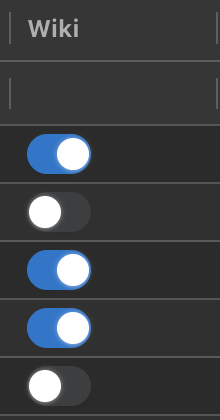
Wiki is a switch on has_wiki — no onChange required:
{
  type: 'toggle',
  variant: 'switch',
  field: 'has_wiki',
  tooltip: 'Toggle Has Wiki',
}
Hint
Use value / onChange when the write needs a side effect (an API call, a different property, etc.)
Link
The link Action Column Control contains a hyperlink built from the row.
You can use it to open a URL, mail a contact, or drill through to another page.
In the Demo
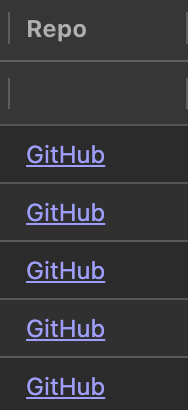
Repo opens html_url in a new tab, and hides itself when the URL is missing:
{
  type: 'link',
  label: 'GitHub',
  href: context => context.data?.html_url ?? '',
  hidden: context => !context.data?.html_url,
  target: '_blank',
}
Select
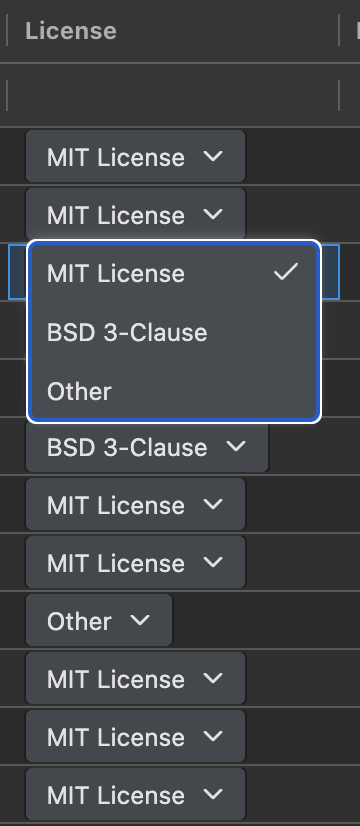
The select Action Column Control contains a dropdown that writes a chosen value.
This allows you to make an edit, or perform another action, without requiring or rendering a Form.
In the Demo
License uses a short static list of column values.
This list can include values that may not already be in the Grid:
{
  type: 'select',
  placeholder: 'License',
  value: context => context.data?.license ?? '',
  options: [
    {label: 'MIT License', value: 'MIT License'},
    {label: 'BSD 3-Clause', value: 'BSD 3-Clause'},
    {label: 'Other', value: 'Other'},
  ],
  onChange: (value, context) => {
    context.rowNode?.setDataValue('license', value);
  },
}
Hint
- The
optionsproperty can also be a function (which receives row-related context) - A common pattern is to fetch distinct column values using the Grid API
Command
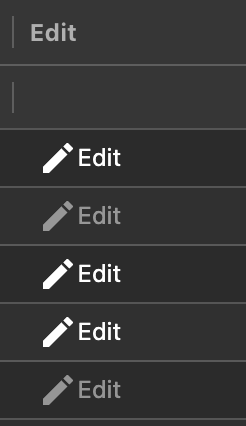
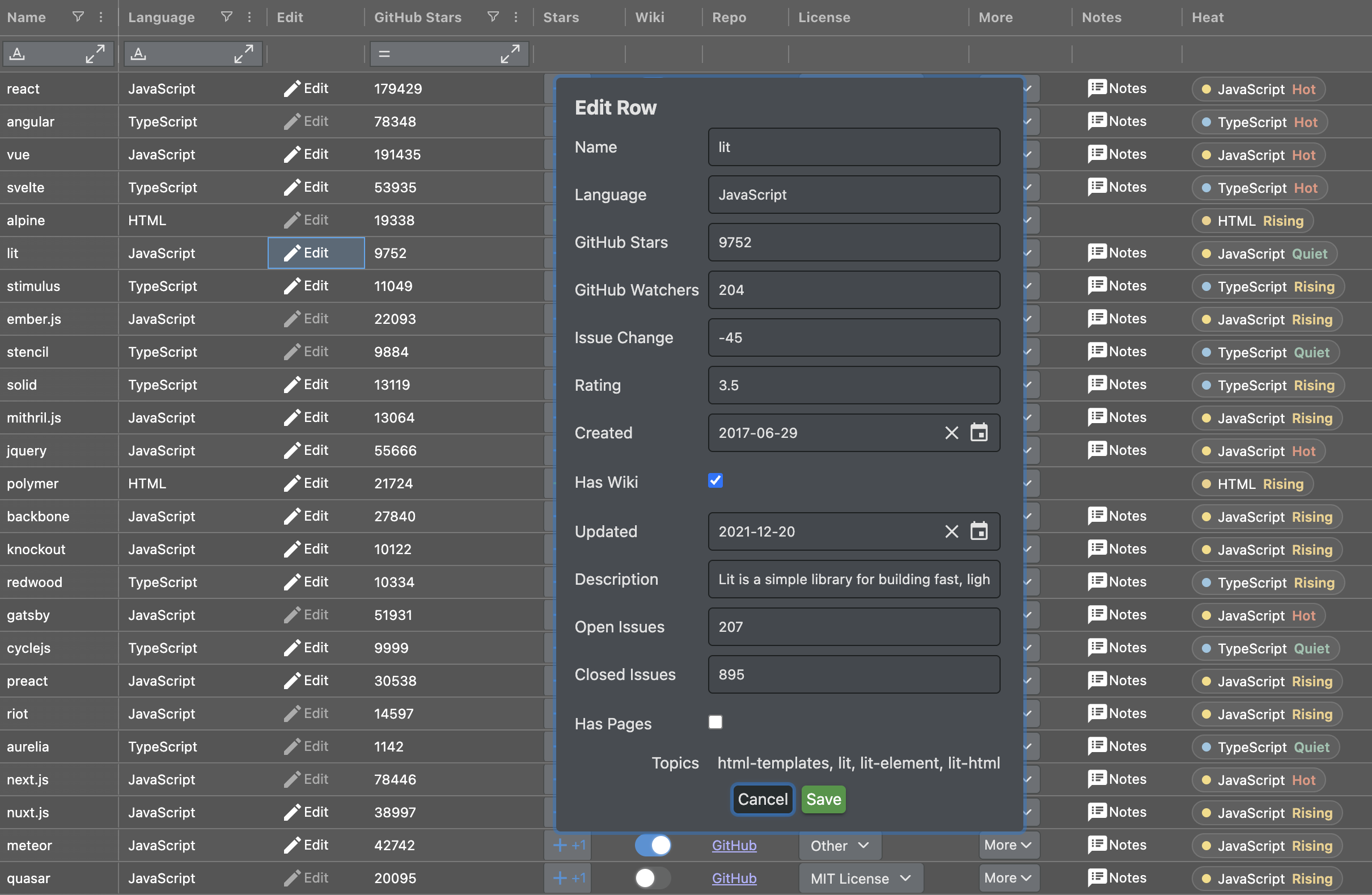
The command Action Column Control is a shortcut for the four built-in Row Form actions: create, clone, edit and delete.
Note
create,cloneandeditall open the appropriate Row Formdeleteuses same submission path (so you can confirm, audit or call server) but without a Form UI
The demo shows edit on the Edit Column (pinned right so it stays in view as you scroll), and clone / delete inside More.
In the Demo
Edit is disabled when the row’s Wiki is off:
{
  type: 'command',
  command: 'edit',
  label: 'Edit',
  disabled: context => !context.data?.has_wiki,
}
Menu
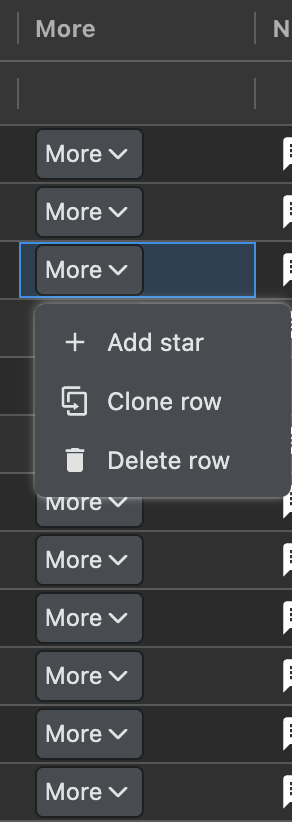
The menu Action Column Control is designed to support a particular use case: when the row needs to cater for more actions than a cell can display.
The Menu allows for multiple different actions to be grouped behind one button.
Hint
Menus can contain any other Control — buttons, commands, forms, even nested menus
In the Demo
More is a dropdown that mixes a custom button with Clone and Delete:
{
  type: 'menu',
  label: 'More',
  variant: 'dropdown',
  controls: [
    {type: 'button', label: 'Add star', icon: {name: 'plus'}, onClick: /* ... */},
    {type: 'command', command: 'clone', label: 'Clone row'},
    {
      type: 'command',
      command: 'delete',
      label: 'Delete row',
      confirm: {title: 'Delete row?', tone: 'danger'},
    },
  ],
}
Note
- Use
variant: 'split'when one action is used most of the time - The main button runs immediately, and the arrow opens the rest
Form
The form Action Column Control opens a Form in a popover.
This is the same Adaptable Form used by Alerts, Export Destinations and Custom Toolbars.
Hint
Forms are ideal when you want to edit a couple of related fields without leaving the Grid
In the Demo
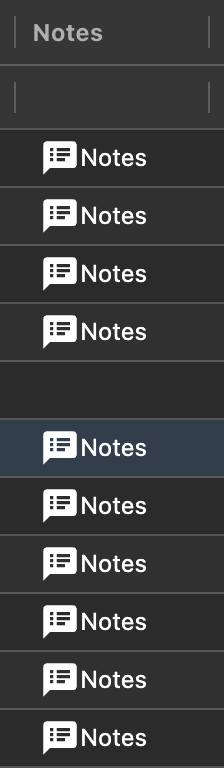
Notes seeds the description and writes it back on Save:
It is hidden on HTML rows.
{
  type: 'form',
  label: 'Notes',
  icon: {name: 'note'},
  hidden: context => context.data?.language === 'HTML',
  getInitialData: context => ({
    description: context.data?.description ?? '',
  }),
  form: {
    title: 'Edit description',
    fields: [{name: 'description', label: 'Description', fieldType: 'text'}],
    buttons: [
      {
        label: 'Save',
        onClick: (_button, ctx) => {
          ctx.rowNode?.setDataValue('description', ctx.formData.description);
        },
      },
    ],
  },
}
Custom
The custom Action Column Control is the escape hatch.
It lets you render your own component in the cell, using your chosen framework:
- In React, a
renderfunction returns a node and receives the full Action Column context - Angular and Vue use the
frameworkComponentproperty - Vanilla (TypeScript) uses the
renderHTMLproperty
Note
- This blog’s demo is written using React
- Heat is a small component with hover state, language colours, and a handler that calls Filter API
In the Demo
The Control itself is still one object in the controls array:
{
  type: 'custom',
  tooltip: 'Filter the Grid to this language',
  render: renderLanguageHeat,
}
LanguageHeat does the main work: coloured chip, Hot / Rising / Quiet label from github_stars, and a click that sets / clears a Column Filter:
const onClick = (event: React.MouseEvent) => {
  event.stopPropagation();
  const filterApi = context.adaptableApi.filterApi.columnFilterApi;
  const expression = `[language] = "${language}"`;
  const existing = filterApi.getColumnFilterForColumn('language');
  if (existing?.Expression === expression) {
    filterApi.clearColumnFilterForColumn('language');
    return;
  }
  filterApi.setColumnFilters([{ColumnId: 'language', Expression: expression}]);
};
Hint
- The demo neatly illustrates the point of the
customAction Column Control - Where built-in Controls are not enough, drop in a custom component but still use the Adaptable API
Defining an Action Column
Each Column needs three things:
columnId— how you refer to it in Layouts and codefriendlyName— the header captioncontrols— the array of Control objects
actionColumnOptions: {
  actionColumns: [
    {
      columnId: 'stars_action',
      friendlyName: 'Stars',
      controls: [
        {
          type: 'button',
          label: '+1',
          onClick: context => {
            /* ... */
          },
        },
      ],
    },
  ],
},
Caution
- Unlike most AdapTable features, Action Columns are defined only in Options, never in Initial State
- Nor can they be created or edited in the UI (though users can pin, hide, & reorder them in a Layout)
Shared Control properties (e.g. label, icon, tooltip, style, hidden, disabled) can be either:
- a static value
- a function that receives context about the current row
That is how Stars can say +1 or +2, Notes can disappear on HTML rows, and Edit can disable when Wiki is off.
Mixing Controls
A Column can host as many Controls as you need, in the order you provide them.
There is no limit to the number of Controls a Column can contain.
Use settings for width, rowScope (data / grouped / summary rows), and overflow.
If they don't fit, setting overflow to 'menu' collapses the extras into an ellipsis (“⋯”) menu.
Hint
- The More Column in the demo is the other way to stay compact
- It contains one menu which has many actions (and no need for any overflow maths)
Find Out More
See Configuring Action Columns for full details including using an AG Grid ColDef with Action Columns
FAQ
Do I need to write an AG Grid cell renderer?
No. For the seven built-in Control types AdapTable renders everything.
Use custom only when you want your own component
Can I mix different Action Column Control types in one Column?
Yes. controls can contain any mix of the 8 types, including a menu that itself contains other Controls
Where do Action Columns live — State or Options? Options only. They are design-time configuration, created each time the application starts. They can still appear in a Layout (pin, hide, reorder)
Can run-time users create their own Action Columns? No. They can rearrange them in the Layout, but definitions stay with the developer
Does a custom Control still get the row context?
Yes. render receives the same ActionColumnContext as every other Control — including adaptableApi, so a chip can filter, edit or notify just like a button
How do Commands relate to Row Forms?
edit, clone & create open matching Row Form; delete uses same submission path without Form UI.
Pair them with rowFormOptions when you need custom titles, primary keys or server-side submission