Row Forms
Summary
- AdapTable provides dynamic Row Forms to help users to safely manage creating, cloning and editing Rows
- Row Forms are highly configurable to meet all requirements
- Row Form submission can be handled automatically by AdapTable or by listening to Row Form Submitted Event
- Action Column Command Buttons can be used to dynamically open Row Forms
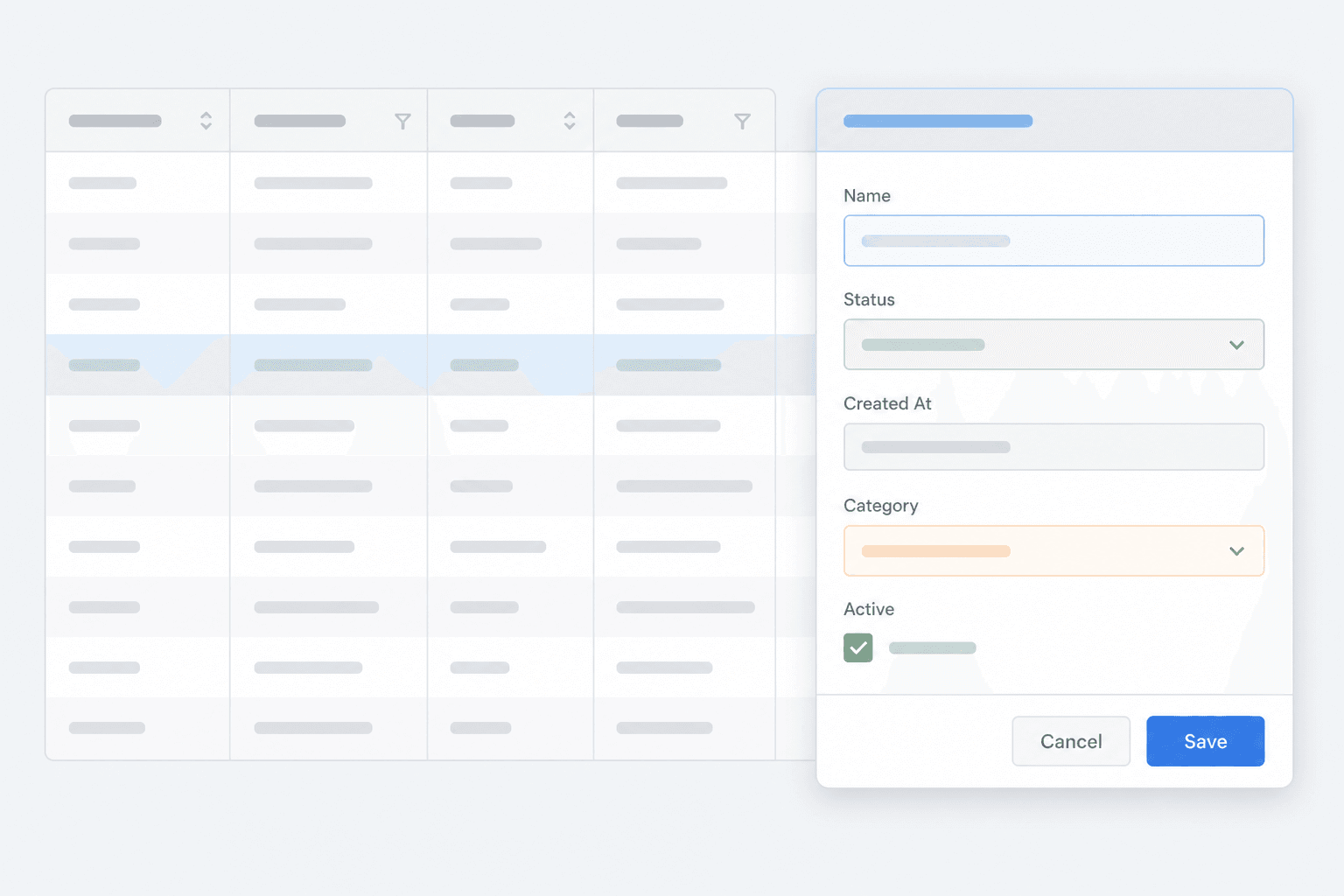
Row Forms allow users safely to manage row-related CRUD operations in AdapTable via a popup Form.
There are 4 Row Forms available (the first 3 each of which are specialised types of Adaptable Form):
Create- opens a completely empty Form with a UI control for each field in the Data SourceClone- opens a Form with fields displaying copied values from an existing rowEdit- opens a Form showing the current values of the RowDelete- no visible Form appears, but it fires Row Form Submitted Event to enable safe row deletion
Displaying Row Forms
Row Forms can be displayed in 2 ways:
- via the Row Form API section of AdapTable API
Note
There are 4 functions: displayCreateRowForm, displayCloneRowForm, displayEditRowForm & displayDeleteRowForm
- using Action Column Command Buttons which automatically open the Form when clicked
Hint
The create, clone, edit and delete Action Commands all open the associated Row Form
Create Row Form
The Create Row Form is designed to add entirely new Rows in AdapTable. The Form displays fields that are based on the existing field and column structure.
Hint
There is also a Clone Row Form which also creates new Rows but based on an actual existing Row
- This demo displays a Create Row Form in AdapTable:
- In Dashboard Options we provide an "Add New Row" Custom Button and configure the Button's
onClickevent to display the Create Row Form using Row Form API - In Row Form Options we provide an implementation for the
setPrimaryKeyValuefunction so we can attach a valid primary key to newly created rows - Additionally we supply a
ROW_ADDEDObservable Alert in Alert Initial State which triggers when the Row Form is created
Edit Row Form
The Edit Row Form is designed to edit existing Rows in AdapTable in a safe way. The Form displays fields with values based on the current field and column structure.
- This demo displays an Edit Row Form in AdapTable:
- We set an
EditAction Column Command in Action Column Options to open the Edit Row Form for each row - In Row Form Options we set
disableInlineEditingto true so that editing is not possible directly in the Grid (i.e. only in the Row Form) - Additionally we configure AdapTable with these Options and Initial State:
- In Edit Options we set the
LanguageandLicenseColumns to display a Select Cell Editor (which also appears in the Row Form) - In Column Defs we set
Github Starsto be readonly - this means that it does not display an input in the Row Form - In Flashing Cell Initial State we set the Row to flash on any cell change
- In Edit Options we set the
Clone Row Form
Opens a Clone Row Form based on an existing Row. The new row is added to the DataGrid.
- This demo displays a Clone Row Form in AdapTable:
- We set a
CloneAction Column Command - with a label - in Action Column Options to open the Clone Row Form for each row - In Row Form Options we provide an implementation for the
setPrimaryKeyValuefunction so we can attach a valid primary key to newly created rows - Additionally we supply a
ROW_ADDEDObservable Alert in Alert Initial State which triggers when the Row Form is created
Delete Row Form
The Delete Row Form is different to the others in that no visible Row Form is actually rendered. However it is still useful as it fires the Row Form Submitted Event. This allows developer to handle (or reject) the row deletion and provide any other actions.
- This demo triggers the Delete Row Form in AdapTable:
- We set a
DeleteAction Column Command - pinned to the right - in Action Column Options which forces the delete (but no visible Row Form appears) - Additionally we supply a
ROW_REMOVEDObservable Alert in Alert Initial State which triggers when the Row is deleted
Row Form Contents
Row Forms are vertical and render a Label and relevant UI control for each Column in the AG Grid Row. The Label displays the Column's Header and the field is an input type associcated with the Column's Data Type:
| Column Data Type | Input Type |
|---|---|
text | Standard input |
number | Numeric Cell Editor |
date | Date Picker |
boolean | Checkbox |
Hint
- Read-only Columns display the field's value but no input is provided
- If a Column has been given a Select Cell Editor, the Form displays it, populated with the Column's distinct values
Customising Row Form Fields
Because a Row Form is a specialised Adaptable Form, every property of AdaptableFormField is available per column - validation, presentation hints, conditional hidden / disabled, alternative field types (textarea, radio, slider, time, datetime, color), multi-select, and fieldType: 'custom' for bespoke widgets.
The hook that exposes all of this is rowFormField on RowFormOptions. It receives the RowFormFieldContext for each column and returns a partial AdaptableFormField; anything you don't return falls back to the auto-derived default.
rowFormOptions: {
  rowFormField: ({ column, type }) => {
    if (column.columnId === 'email') {
      return {
        required: true,
        pattern: '^\\S+@\\S+\\.\\S+$',
        helpText: 'used for delivery only',
      };
    }
    if (column.columnId === 'notes') {
      return { fieldType: 'textarea', rows: 4, placeholder: 'optional notes' };
    }
    if (column.columnId === 'priority') {
      return {
        fieldType: 'radio',
        options: [
          { label: 'Low',    value: 'low'    },
          { label: 'Normal', value: 'normal' },
          { label: 'High',   value: 'high'   },
        ],
      };
    }
    if (column.columnId === 'archived' && type === 'rowCreated') {
      return { hidden: true };  // never show on the Create form
    }
  },
}
Hint
- The
nameof the field is always thecolumnId- anynameyou return is ignored, since renaming would desync the form's data from the underlying grid column - The standard Save button now disables automatically while the form is invalid (e.g. a
requiredfield is empty, or apatterndoesn't match), so any validation you supply is enforced for free - For full details of every property see the Adaptable Form tutorial
Note
The earlier rowFormFieldLabel callback is still supported but rowFormField supersedes it - just return { label: '...' } from your override.
Configuring Row Forms
Developers can configure Row Forms so they meet precise requirements and use cases. Options include:
- configuring the Form's title and description
- changing the buttons that appear (by default they are Cancel and Save)
- adding custom buttons
- providing a Primary Key value (useful when accessing the Create Row Form)
- disabling inline editing - so that all editing has to use the Form
Find Out More
See Configuring Row Forms for more details
Handling Row Form Submission
In the demos above, AdapTable performed all the row management automatically. It created, edited or cloned the Row when the Form was submitted (and removed it when Delete is clicked). This is perfectly suitable for most scenarios, and no additional developer / support input is required. However, some use cases require that rows are only updated or deleted after the form has been submitted.
Note
- This allows developers first to get details of the new / updated row and call any relevant backend services
- They can only then update the Grid's row data collection - typically via a round trip, rather than directly
For this reason, Adaptable provides the Row Form Submitted Event which is fired:
- whenever a Row Form is submitted
- when a
DeleteAction Column Command Button is clicked
Caution
- If using this option then set
autoHandleto false in Row Form Options - This tells AdapTable not to do any row management itself but to leave it to the developer listening to the Event
autoHandle
Default: trueboolean- This demo provides a more advanced use case for leveraging Row Forms in Adaptable
- In Row Form Options we set 4 properties:
- in
actionRowButtonswe configure 'clone', 'edit' and 'delete' buttons - pin 'clone' and 'edit' to left of Grid, and 'delete' to the right
- provide an implementation for the
setPrimaryKeyValuefunction so we can attach a valid primary key to newly created rows autoHandlehas been left unset, so it defaults to false - meaning we need to handle the Row Form submission
- in
- In Dashboard Options we configure a Custom Button which when clicked opens the
CreateRow form - Most importantly we listen to the Row Form Submitted Event and based on the
typeof the action we perform the Row manipulation directly - Note: in a more real world case you will likely call a server to do this but the key point is the separation of form submission and row-related action
Editing with Row Forms
Enhance your AG Grid exprience with Row Forms; Create, Edit, Clone and Delete for safer row-level CRUD
FAQ
How can I check data provided in the form before it enters the AG Grid?
First, ensure that autoHandle is set to false to prevent automatic entry; then listen to the Row Form Submitted Event to perform any updates yourself