AdapTable State Persistence Guide
Summary
- By default, AdapTable State is saved to local storage and users need to do anything
- In practice most users use remote storage which AdapTable provides via a series of functions in State Options
AdapTable State is designed to be persisted allowing for a seamless user experience between sessions.
Local Storage
By default, AdapTable State is stored in the browser's local storage.
This is done using the unique adaptableStateKey property provided in Adaptable Options.
Caution
If using Local Storage, all user state will be lost each time the user clear's the browser cache or switches computers
In practice, very few production users of AdapTable use local storage as their storage mechanism.
Find Out More
Learn more about setting the adaptableStateKey property in the Integration Guide
Remote Storage
AdapTable also enables User State to be persisted remotely in - and subsequently retrieved from - any location of the users' choice.
Note
- Most of the demos in this site use Local Storage for convenience sake
- However, the overwhelming majority of real world applications that use AdapTable leverage remote storage
Remote storage is accessible via a set of JavaScript functions available in State Options.
State Options provides 5 functions which allow developers to control the management of AdapTable State and supports custom implementations and functionality for managing state:
Hint
- This allows you to provide your own hydration or rehydration functionality if required
- It also allows you to enrich the State when its being loaded with your own items (e.g. Entitlements)
| Function | Enables | Default AdapTable Behaviour |
|---|---|---|
loadState | Customization of State loading | Loads State from local storage |
applyState | Hooking into State hydration | |
saveState | Customization of State that is about to be persisted | |
persistState | Customisation of State persistence | Persists State to local storage |
clearState | Clears all User State | Clears State from local storage |
Remote Storage Workflow
The AdapTable State flow is as follows:
- User Loads Page -->
loadState()state1 ->applyState(state1) - state2 ---- ADAPTABLE NOW READY WITH STATE (state2)
- User Updates State ------
saveState(state3): - state4 ->
persistState(state4)
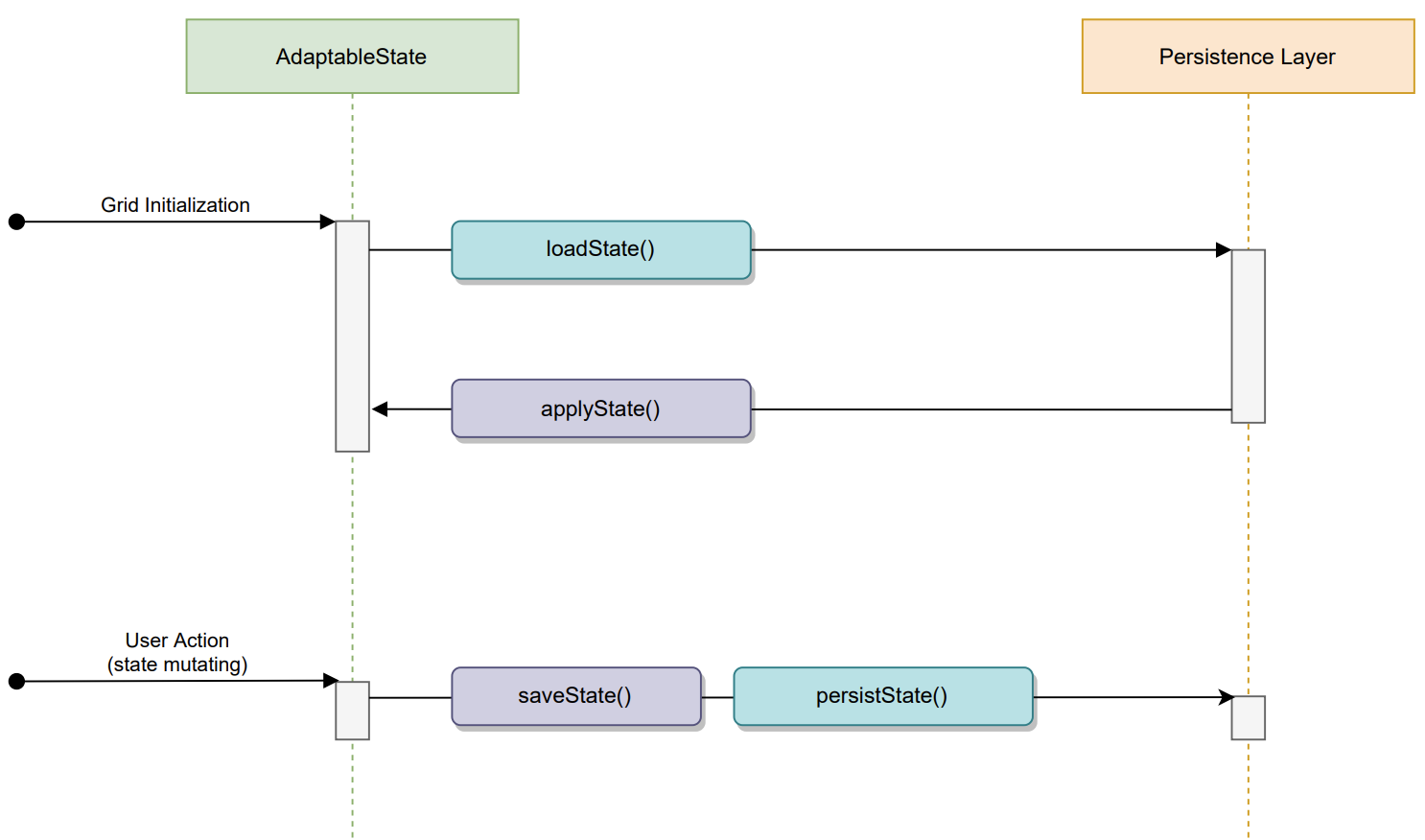
Load State
Apply State
applyState
Save State
saveState
Persist State
Clear State
clearState
- This example shows how to load and persist state through custom State Options
- The demo uses a mock remote service (async + separate storage namespace) so the pattern is clear without an external backend
- In production you would call your own API from the same functions (e.g. Supabase, Firebase, S3, etc.)
- Make any changes to the AdapTable State (e.g. move a column) and then click Refresh Page: your changes will be retained
- Change the
AdaptableStateKeyand click Set Key & Refresh State: the grid will load that key's state (or Initial State if none exists yet) - Going back to the previous
AdaptableStateKeywill restore the previous state
Debouncing State Changes
By default AdapTable will debounce saveState and persistState function calls for 400 miliseconds.
This enables grouping multiple sequential calls into single one.
Note
A good analogy might be how lift / elevator doors work
This can be changed using the debounceStateDelay property in State Options.
debounceStateDelay
Default: 400booleanManaging Multiple States
Note
The Sandpack below is implemented as a React app (login control above the grid; switching users re-initialises AdapTable with new AdaptableOptions). It runs the same way whichever framework picker flavour you have selected.
The stateOptions, entitlementOptions, and dashboardOptions shown in the walkthrough apply equally to AdapTable TypeScript, React, Angular, and Vue — only the surrounding application wiring differs.
- This example shows how to load & persist state based on user identity/role. Persistence uses a mock remote service here; in production call your own API from the same functions (e.g. Supabase, Firebase, S3, etc.).
- It also showcases user specific Permissions (Entitlements) and how to use them to control access to AdapTable features.
- The demo showcases 3 different users:
- Guest (not logged in)
- any changes they make will not be persisted and will be lost when the page is refreshed
- all AdapTable features are available but only in read-only mode
- Alice
- any changes she makes will be persisted and will be available only to her
- all AdapTable features are available and editable, except for the
StyledColumnmodule which is in read-only mode
- Bob
- any changes he makes will be persisted and will be available only to him
- all AdapTable features are available and editable, except for the
Alertmodule which is hidden
- Guest (not logged in)
- The logged in users (
AliceandBob) can revert to the Initial Adaptable State by clicking theReset Statebutton in the Dashboard.
Expand to see how the State Management and Entitlements is configured
- Log in as
AliceorBobto see how the state is persisted distinctively for each user by making various changes to the grid and then refreshing the page- e.g. change the current Layout (sorting/adding/hiding columns), add a new FormatColumn, etc.
- Reset the state by clicking the
Reset Statebutton in the Dashboard at any time - Navigate to the
StyledColumnmodule and try to edit the existing style (onlyAlicewill not be able to do this)
Controlling State Persistence
In more advanced use cases, developers wish to control how and when State is persisted.
Their aim is to suppress automatic State Persistence, and to persist state imperatively instead.
There are 2 common scenarios:
- suppressing all State Persistence and replacing it with an imperative save function
- suppressing specific State Persistence and replacing just that with an imperative save function
Hint
A popular use case is to save Layouts manually, on clicking a button, rather than automatically
Suppressing all Persistence
- In this example we show how to suppress the automatic state persistence and imperatively persist the state
- This is useful when you want to control when the state is persisted, e.g. after a user action or a specific event
- This demo uses the Adaptable Context to handle the interaction, but you can use any other mechanism, including your own application logic/state management
- Perform any changes to the AdapTable State: e.g. change the current Layout (sorting/adding/hiding columns), add a new FormatColumn, etc.
- The changes will be kept client side and will be persisted only when you click the
Persist Statebutton in the Dashboard - Refreshing the demo will load the last persisted state, but any changes made since the last persistence will be lost
- The suppressed changes are logged in the console
- Reset the state to the initial value by clicking the
Reset Statebutton in the Dashboard at any time
Suppressing specific Persistence
- In this example we show how to suppress the automatic state persistence of specific state slices (e.g. only Layouts with a specific Tag) and imperatively persist them
- All other state changes will be persisted automatically as usual
- This is useful when you want to control when specific changes are persisted, e.g. Layout changes, but not other changes (e.g. FormatColumns)
- This demo uses the Adaptable Context to handle the interaction, but you can use any other mechanism, including your own application logic/state management
- Perform any changes to the 'Protected Layout': e.g. sort/filter/hide columns, etc.
- All changes will NOT be persisted automatically but only when you click the
Persist Statebutton in the Dashboard - Refreshing the demo will load the last persisted state, but any changes made since the last persistence will be lost
- The suppressed changes are logged in the console
- All changes will NOT be persisted automatically but only when you click the
- Perform any changes to the 'Standard Layout': e.g. sort/filter/hide columns, etc.
- All changes will be persisted automatically as usual
- Any other changes to the AdapTable State will be persisted automatically as usual
- Reset the state to the initial value by clicking the
Reset Statebutton in the Dashboard at any time