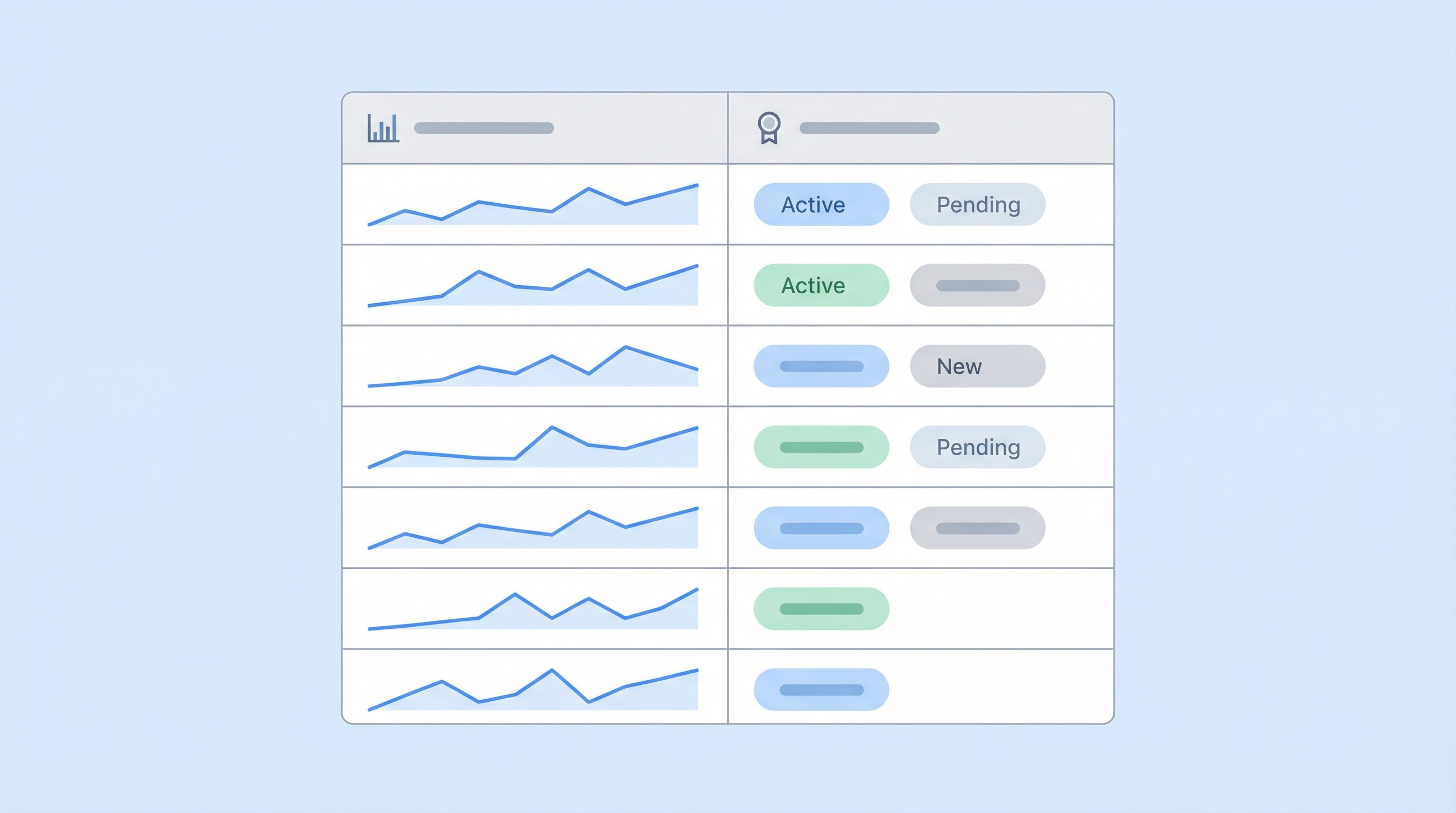
Creating Array Columns
Summary
- Array Columns contain multiple values in each Cell
- AdapTable supports these and enables rendering in Badge Styles or Sparkline Columns
- Calculated Columns which contain arrays can also be created
- Filtering is available in Array Columns using the In Filter
AG Grid provides Cell Data Types which AdapTable leverages to know the data type of a Column.
Note
This allows AdapTable to create the correct Filters and Menus
For the majority of Columns, these cell data types are all that is needed.
However, there are a few use cases - all regarding array data - where the the AG Grid types are insufficient.
In these scenarios, one of these array values provided by AdapTable should be used instead:
textArraynumberArraytupleArrayobjectArray
Sparkline Columns
If defining a Column that will use a Sparkline Column Style then a numeric array is required.
AdapTable provides 3 types of numeric arrays:
| Type of Data | Value for cellDataType property | Example |
|---|---|---|
| Numeric Array | numberArray | [27, 5, 13, 25] |
| Array of Numeric Tuples | tupleArray | [ [14, 22], [5, 13], [19, 30] ] |
| Array of Numeric Objects | objectArray | [ \{x: 14, y: 22\}, \{x: 5, y: 13\}, \{x: 19, y: 30\} ] |
const gridOptions: GridOptions = {
  columnDefs: [
    {
      headerName: 'History',
      field: 'history',
      cellDataType: 'numberArray',
    },
    {
      headerName: 'Prices',
      field: 'prices',
      cellDataType: 'tupleArray',
    },
  ],
};
Badge Styles
A common use case when creating a Badge Style is to show a distinct badge for each separate item in a cell.
Again, the way to achieve this is to use an AdapTable-provided value for the cellDataType.
| Type of Data | Value for cellDataType property | Example |
|---|---|---|
| String Array | textArray (or numberArray) | ['US', 'GBP', 'France'] (or [19,11,27]) |
Hint
It is also possible to use the numberArray cell data type in Array Badge Styles
const gridOptions: GridOptions = {
  columnDefs: [
    {
      headerName: 'Institutions',
      field: 'institutions',
      cellDataType: 'textArray',
    },
  ],
};
Calculated Columns
It is possible to create Calculated Columns which will display Array data.
Typically the Calculated Column's Expresssion will include the TO_ARRAY Expression Function to create the array.
Note
- When defining the Calculated Column, an appropriate array cell data type should be used (e.g. numeric or string)
- If using the Calculated Column UI Wizard, AdapTable works out the appropriate cell data type from the Expression
Hint
You can create a Sparkline Column to render the Calculated Column's array if required
Filtering
AdapTable fully supports Column Filtering in Array based columns.
The In Filter is used as the default Predicate, and any row which contains a selected value is displayed.
- This demo contains 2 array-based Columns:
Institutionscolumn (textArray) - we created 7 Badges each with a Rule (per institution), and a (Green) Badge for institutions which do not meet any PredicateRatingscolumn (numericArray) - shows a Sparkline Column - note this column is a Calculated Column where the array is the output of aTO_ARRAYExpression Function
- Filter the
InstitutionsColumn so that just rows containing Princeton or Columnbia are visible